
Introduction
Almost every Android user in Pakistan has hit this wall at least once.
You hear about an app from a friend in Lahore, or you see it trending on a Facebook group, and you go looking for it on the Play Store — and it simply isn’t there. Or it is there, but it refuses to install on your Infinix because the listing says “not compatible with your device.” Or the version on Play is three updates behind the one everyone else is using.
So you do what millions of people here do: you search for the APK.
There’s nothing shady about that by itself. Installing an APK file — what most people call “sideloading” — is a normal, supported part of Android. Google built the mechanism deliberately. The problem isn’t the method. The problem is that the search results for “download APK” are a minefield, and a single careless tap can hand a stranger access to your JazzCash PIN, your WhatsApp OTPs, and your contact list.
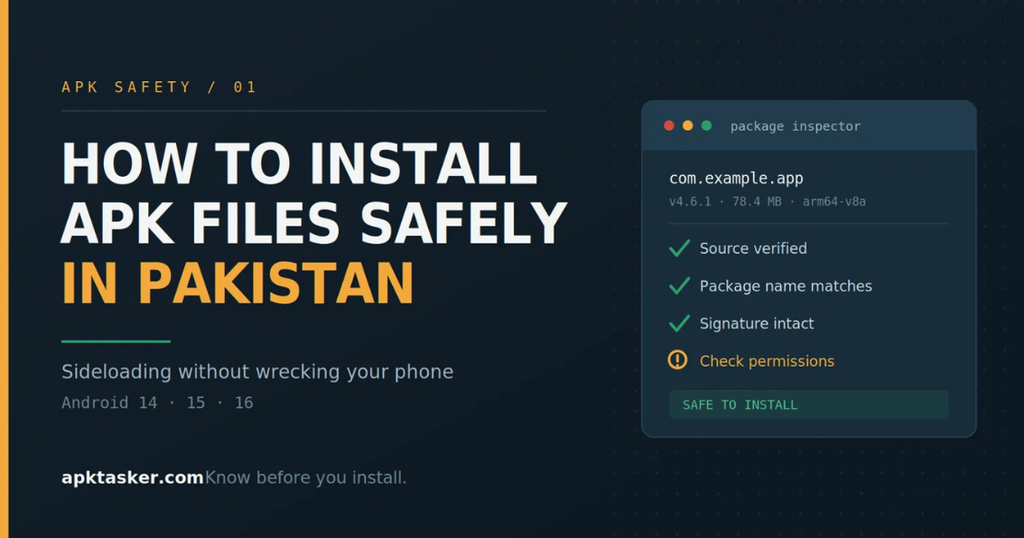
This guide walks you through how to install APK files in Pakistan the careful way — what to check before you tap install, how the process works on Android 14, 15 and 16, and the specific traps that keep catching Pakistani users in 2026.

Know before you install.
First, what an APK file actually is
APK stands for Android Package Kit. Think of it as the Android equivalent of a .exe file on Windows — a single compressed bundle that contains everything an app needs: the code, the images, the sounds, the permission list, and a digital signature from whoever built it.
When you install something from the Play Store, you’re still installing an APK. Google just handles the download, the verification and the signature check in the background so you never see the file. When you sideload, you’re doing that same job manually — which means the verification part is now your responsibility.
That’s the whole safety story in one sentence. Sideloading isn’t dangerous because APKs are dangerous. It’s dangerous because you’ve taken over the security check and most people skip it.
Why so many people in Pakistan sideload apps
It’s worth understanding why this is so common here, because it explains which scams target us specifically.
Apps that never launched in Pakistan. Plenty of global apps geo-restrict their Play Store listing. Some banking tools, streaming services and beta releases simply don’t appear for a Pakistani Google account.
Blocked or delisted apps. When an app is restricted locally, the Play Store listing disappears but the APK keeps circulating. Whether you should install those is a separate question — but the demand is real.
Older and budget hardware. A huge share of phones in Pakistan are entry-level Infinix, Tecno, itel, Redmi and Vivo models with 2–4GB RAM. Newer app versions often drop support for older Android builds, so people hunt down older APK versions that still run.
Storage and data costs. A 900MB game download on a Zong or Jazz data bundle hurts. People share APK files over SHAREit, Bluetooth or a USB from a friend’s laptop instead — and those shared files have already passed through several hands.
Game mods and “earning” apps. This is where most of the damage happens. We’ll come back to it.
Is installing APK files legal in Pakistan?
Broadly, yes — the act of sideloading is not illegal. Android permits it, and your phone isn’t doing anything unlawful by installing a package you downloaded yourself.
Where it turns into a problem is what you install. Cracked versions of paid apps, modded games that bypass in-app purchases, and repackaged premium software are copyright violations regardless of where you live. They’re also, by an enormous margin, the most common carriers of malware — because someone had to open up that app, modify it and re-sign it before handing it to you for free. Ask yourself what else they added while they were in there.
Separately, apps that have been formally restricted by regulators in Pakistan may carry their own legal considerations. If you’re unsure about a specific app’s status, that’s worth checking properly rather than guessing.
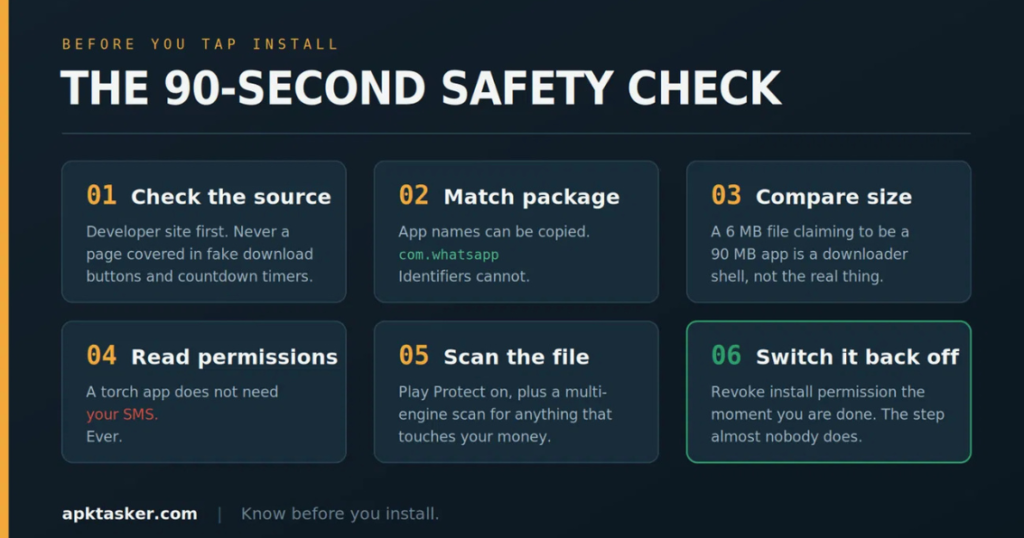
The pre-install safety check: six things to do before you tap
This is the part almost everyone skips, and it takes about ninety seconds.
1. Judge the source before you judge the file
There’s a meaningful difference between a well-known APK repository that cryptographically verifies uploads against the developer’s original signature, and a random blogspot page with eleven “Download” buttons where only one is real.
Reputable mirrors publish the package name, version code, signature hash and the SDK requirements right on the page. Sketchy sites publish a countdown timer and a lot of ads. You can tell within five seconds which one you’re on.
Best of all is the developer’s own website. Many apps that skip the Play Store host a direct download themselves — that’s always the first place to look.
2. Check the package name, not the app name
Anyone can name their APK “WhatsApp Latest 2026.” Nobody else can legitimately use the package identifier com.whatsapp.
The package name is the app’s real, unique address. A fake will use something slightly off — an extra word, a different domain order, a lookalike character. If a download page won’t tell you the package name, that’s information in itself.
3. Compare the file size against reality
If the official app is 78MB and the APK you’re looking at is 9MB, you are not downloading that app. You’re downloading a wrapper — usually a downloader stub that fetches the real payload after install, when you’re no longer paying attention.
Oversized files deserve suspicion too. A 400MB “lightweight” utility app has something extra bundled in.
4. Read the permission list before installing, not after
Once installed, tap and hold the APK in your file manager or check the app info page. Android will show you what the package is asking for.
Apply common sense. A torch app does not need your SMS. A wallpaper app does not need Accessibility Services. A calculator does not need to read your contacts.
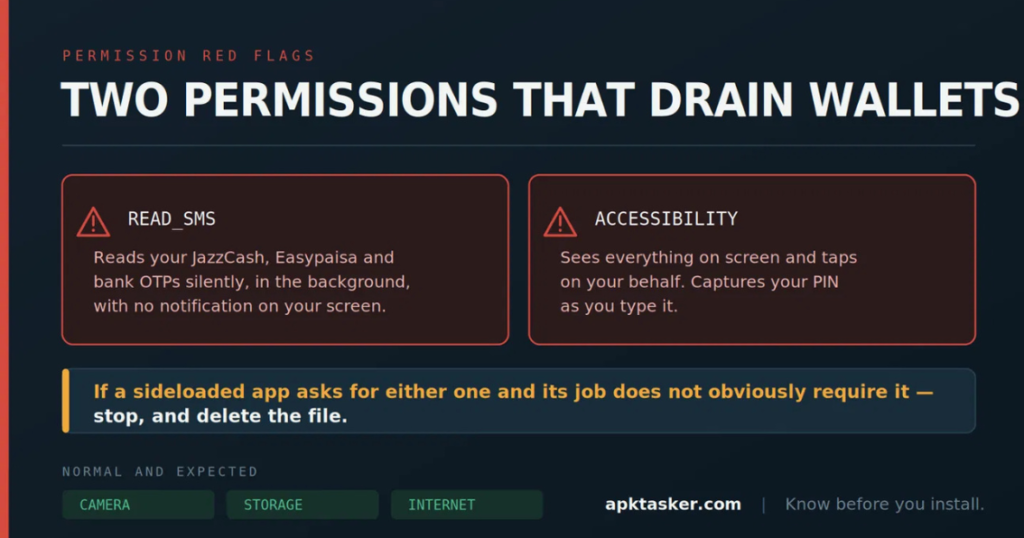
Two permissions deserve genuine alarm in a sideloaded app:
- SMS read access — this is how OTP theft works. An app with SMS access can read your JazzCash, Easypaisa or bank verification codes silently, in the background, without any notification on your screen.
- Accessibility Service — designed for users with disabilities, it lets an app see and control everything on screen. Malware loves it because it can read what you type and tap buttons on your behalf.
If a sideloaded app requests either of these and its actual function doesn’t obviously require them, stop. Delete the file.
5. Let Play Protect scan it
Google Play Protect runs on almost all Android phones in Pakistan and scans sideloaded packages, not just Play Store ones. It’s not perfect — it misses freshly written malware — but it catches known bad packages instantly and costs you nothing.
Open the Play Store, tap your profile picture, go to Play Protect, and make sure scanning is switched on. Leave it on permanently.
6. Upload it to a multi-engine scanner if the stakes are high
If you’re about to install something that will touch your money or your identity, upload the APK to an online multi-antivirus scanner before installing. Dozens of engines check it at once. A file with several detections goes in the bin. A file with one detection from an obscure engine is usually a false positive, but it’s your call.
How to install an APK on Android 14, 15 and 16
The permission model changed years ago and confuses people who remember the old way. There is no longer a single master switch called “Unknown Sources.” Instead, permission is granted per app — you authorise Chrome to install packages, or your file manager, or WhatsApp, individually.
This is a good change. It means a malicious app can’t quietly install a second app behind your back.
Step 1 — Download the APK. Use Chrome, Firefox, or copy it from a PC. Note where it lands: usually the Download folder.
Step 2 — Open it. Use your phone’s Files app, or tap the download notification. Samsung users, that’s My Files. Xiaomi and Redmi, that’s the File Manager app.
Step 3 — Grant install permission when prompted. Android will block the first attempt and show a message saying this source isn’t allowed to install unknown apps. Tap Settings in that dialog. You’ll land on a screen titled “Install unknown apps,” with a toggle for the specific app you’re using. Switch it on and press back.
You can also reach it manually: Settings → Apps → Special app access → Install unknown apps, then pick the app.
Step 4 — Review the install screen. This shows the app name and, on newer versions, a warning if the package looks unusual. Read it. Then tap Install.
Step 5 — Let the scan run. Android may offer to send the app to Google for scanning. Say yes. It takes a few seconds.
Step 6 — Turn the permission back off. This is the step nobody does, and it’s the most valuable one in this article. Go back to Install unknown apps and switch the toggle off for that browser or file manager. You’ve finished installing. There’s no reason to leave the door open.
After installation: three habits worth building
Watch the first 24 hours. Sudden battery drain, the phone getting hot while idle, unexplained mobile data usage, or ads appearing on your home screen are all classic signs. Check Settings → Network → Data usage and see whether your new app is quietly uploading something.
Don’t grant permissions on request without thinking. Apps ask again after install. The prompt in the moment feels harmless — it isn’t. Deny anything that isn’t clearly necessary and see whether the app still works. Usually it does.
Keep the APK file or note the version. If an update breaks something, you’ll want to know exactly which build you were on.
The Pakistan-specific traps to know about
Three patterns come up over and over in local Android groups:
“Earning” and referral apps. Apps promising daily income for watching ads or spinning a wheel. Some are outright malware, most are pyramid structures that pay early users with later users’ deposits. Almost none survive six months. If an app wants an Easypaisa or JazzCash deposit before it will let you withdraw, it is not going to let you withdraw.
Modded game APKs with unlimited coins. Overwhelmingly repackaged and re-signed by unknown parties. The mod usually works. So does whatever else was added.
APK files shared over WhatsApp groups. A file passed hand to hand loses all traceability. Even if the original was clean, you have no way of knowing whether the third person in the chain swapped it. Download from the source yourself.
If something has already gone wrong
Boot into Safe Mode by holding the power button, then long-pressing “Power off” until the Safe Mode prompt appears. Third-party apps are disabled in Safe Mode, which lets you uninstall a stubborn one.
Then check Settings → Apps → Special app access → Device admin apps and revoke anything you don’t recognise — malware registers itself there to block uninstallation. Do the same for Accessibility Services.
After that: change your banking and wallet PINs from a different device, and run a full Play Protect scan.
The short version
Sideloading is a legitimate, useful part of Android — and in Pakistan, often a necessary one. The risk isn’t the technique, it’s the impatience. Check the source, check the package name, check the size, read the permissions, scan it, and turn the install toggle back off afterwards.
Ninety seconds of caution is genuinely all that separates a useful app from a drained mobile wallet.
FAQs
Is it safe to install APK files in Pakistan?
It’s as safe as the source you use. An APK from a developer’s official site or a signature-verifying repository is no riskier than a Play Store install. An APK from an ad-covered download page is a gamble.
Why does my phone say “app not installed”?
Usually a signature conflict with an existing version, insufficient storage, a corrupted download, or an APK built for a different Android version or chip architecture.
Does installing an APK void my warranty?
No. Sideloading is a standard Android feature. Rooting and unlocking the bootloader are different matters.
Can an APK steal my JazzCash or Easypaisa money?
Not directly from the app itself — but an app with SMS read access can capture your OTPs, and one with Accessibility access can watch you type your PIN. That’s why those two permissions matter more than all the others combined.
Should I keep “Install unknown apps” enabled permanently?
No. Enable it for the moment you need it, then switch it off.