
App not installed error solution
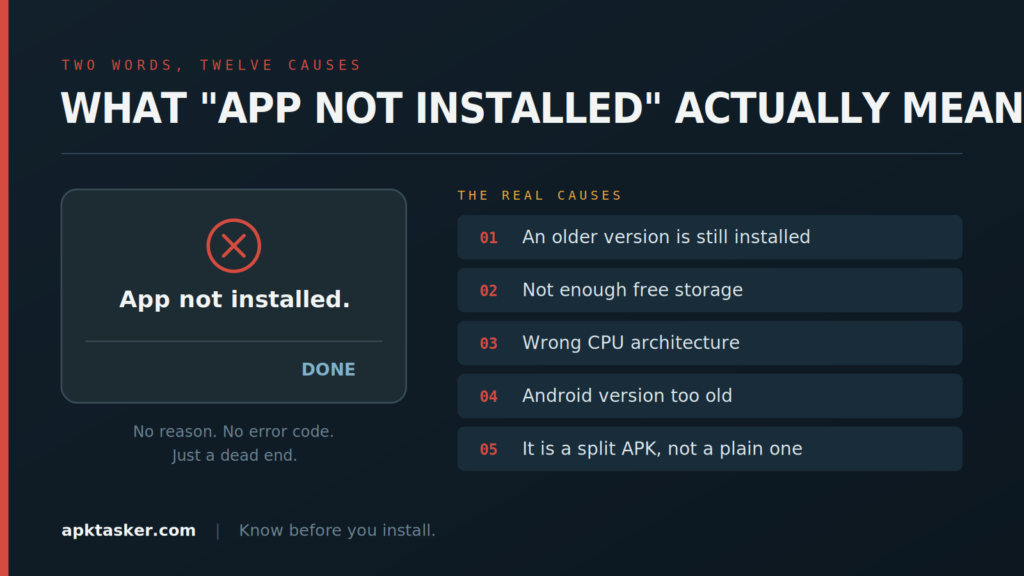
You’ve found the APK. You’ve checked the source. You tap install, the progress bar crawls to the end, and then Android throws up two words that explain absolutely nothing: No reason. No error code. Just a dead end and a button that says Done.That message is Android’s way of collapsing about a dozen different failures into one unhelpful string. The good news is that once you know what the actual causes are, most of them take under two minutes to fix. This guide walks through the ten that account for nearly every real-world case, roughly in the order you should try them.
1. An older or newer version of the app is already installed
This is the single most common cause and the one people overlook because the app doesn’t appear to be there.
Android refuses to install an APK if a package with the same identifier already exists and the signatures don’t match. That happens constantly —, you have version 4.2 from the Play Store, and you’re trying to sideload version 4.6 that someone else compiled and signed. Two different signing keys, same package name. Android says no.
The fix: uninstall the existing version completely first.
Go to Settings → Apps, find the app, and uninstall. If it came preinstalled and there’s no uninstall button, tap Disable and then the three-dot menu → Uninstall updates.
Critically, uninstalling wipes app data. If it’s a game with progress or a messaging app, back up first — most apps have an in-app backup option, and WhatsApp writes its backup to internal storage automatically.
A trap worth knowing: on phones with multiple user profiles or a Secure Folder (common on Samsung), a copy of the app can exist in another profile and block the install even though your main profile looks clean. Check Settings → Apps → three-dot menu → Show system apps, and check any secondary profiles.
2. The download is corrupted
APK files break during download more often than you’d expect, particularly on unstable mobile data. A half-downloaded file will still open, still show an install screen, and still fail at the last second.
The fix: delete the file and download it again — ideally over Wi-Fi rather than a Jazz or Zong data connection that might drop mid-transfer.
If the source publishes a checksum (usually SHA-256 or MD5), verify it. A file manager with a hash tool, or a hash-checker app, will compute the value in a second. If it doesn’t match the published one, the file is either damaged or tampered with. Either way, don’t install it.
Files copied over Bluetooth or shared through a chat app are especially prone to this. Always prefer a direct download.
3. You don’t have enough storage
An APK needs considerably more free space than its own file size. Android has to store the package, then unpack it, then optimise it, then write the app data — realistically two and a half to three times the download size.
So a 250MB game can fail on a phone showing 400MB free.
The fix: clear space properly, not superficially.
- Settings → Storage shows you what’s eating the space. On most phones in Pakistan the answer is WhatsApp media.
- Open WhatsApp → Settings → Storage and data → Manage storage and clear forwarded videos and large files. People routinely recover several gigabytes here.
- Clear the cache of your heaviest apps. Cache rebuilds automatically; you lose nothing.
- Move photos to an SD card or upload and delete.
Aim for at least 1GB free before retrying a large install.
4. The APK is built for a different chip architecture
This one catches people with budget phones and it produces the most confusing symptom: the same APK installs fine on your friend’s phone and fails on yours.
Android phones use different CPU architectures. Most modern devices are arm64-v8a. Older and very cheap devices are armeabi-v7a. A handful of tablets and emulators use x86 or x86_64.
An APK compiled only for arm64 will not install on an armeabi-v7a device. Some download pages publish separate builds — arm64-v8a, armeabi-v7a, universal — and picking the wrong one gets you nowhere.
The fix: find out what your phone uses. A free device-info app will tell you in seconds under CPU architecture or instruction set. Then download the matching build, or pick the universal APK if one is offered — it contains all architectures and works everywhere, at the cost of a bigger file.
5. The APK requires a newer Android version than you have
Every APK declares a minimum SDK level. If the app requires Android 10 and your phone is on Android 8, the install fails.
This affects a lot of users in Pakistan, because there’s an enormous installed base of budget devices from 2019–2021 that stopped receiving updates years ago and are still in daily use.
The fix: check your Android version under Settings → About phone. Then look for an older release of the app. Good APK repositories keep a full version history and list the minimum Android requirement for each build. Step back a few versions until you find one your phone supports.
Yes, older versions miss features and security patches. That’s the trade-off, and it’s a real one — weigh it honestly rather than pretending it doesn’t exist.
6. Install permission isn’t granted for the app you’re installing from
Since Android 8, permission to install packages is granted per app rather than globally. Your browser might have it, your file manager might not.
The fix: Settings → Apps → Special app access → Install unknown apps, then find whichever app you’re opening the APK with — Chrome, Files, My File Manager, Telegram — and enable the toggle for it.
On Android 14, 15 and 16 there’s an extra wrinkle: some manufacturers reset this permission after a system update or after a period of disuse. If sideloading worked last month and doesn’t today, check this first.
Turn it back off once you’re done.
7. Google Play Protect is blocking it
Play Protect scans sideloaded packages and will refuse installation outright if it recognises the app as harmful. Sometimes it’s right. Sometimes it flags modified builds and lesser-known apps as a precaution.
You’ll usually see a message about the app being blocked or unsafe rather than the generic error, but not always.
The fix — and read this part carefully. You can disable Play Protect scanning under Play Store → profile picture → Play Protect → settings. You should be extremely reluctant to.
If Play Protect blocked something, treat that as evidence, not an obstacle. Go back and re-verify the source. If it’s a cracked or modded build from an unknown uploader, Play Protect is very probably correct and you should stop. Only consider overriding it for an app whose developer you can independently identify and trust — and switch scanning back on straight afterwards.
8. It’s a split APK and you’re installing it wrong
If your download arrived as an XAPK, APKS, or APKM file, or as a ZIP containing a base APK plus several config.*.apk files, then a plain install will never work. These are multi-part bundles, and the standard Android installer only accepts a single APK.
The fix: install it with a tool that understands split packages — a split APK installer app, or the manufacturer’s own installer where supported. The installer merges the base package with the correct configuration modules for your device and installs them as one unit.
Don’t try to install the base APK on its own. It will either fail or install a broken app with missing assets and no language files.
Article 5 in this series covers these formats in full if you want the deeper explanation.
9. The package is genuinely damaged or unsigned
Every legitimate APK carries a digital signature. Repackaging tools sometimes produce files where the signature is missing, broken, or doesn’t cover all the files in the archive. Android checks this at install and rejects the package.
You’ll often see a variant of the error here: “There was a problem parsing the package” or “the package appears to be invalid.”
The fix: there isn’t one on your end. You cannot repair a broken signature. Get the file from a different source — preferably the developer’s own site.
If three separate sources of the same app all fail this way, the app itself has probably been abandoned or the version you’re chasing was never released publicly.
10. Manufacturer-level restrictions are getting in the way
Xiaomi, Vivo, Oppo, Realme and Infinix all add their own security layers on top of Android, and several of them interfere with sideloading in ways stock Android doesn’t.
On Xiaomi and Redmi (MIUI / HyperOS): there’s a separate scan step that sends unknown apps to a Xiaomi security service, and an “Increased security” or “unknown sources” setting inside the Security app. New Xiaomi accounts also face a delay before sideloading is permitted at all.
On Vivo and Oppo (Funtouch / ColorOS): look in the built-in Phone Manager or i Manager app for an install-blocking toggle separate from the system settings.
On Samsung: Auto Blocker, introduced in recent One UI versions, blocks all sideloading when enabled — and it’s on by default on many units. Find it under Settings → Security and privacy → Auto Blocker and switch it off temporarily.
The general fix: open your phone’s own security or manager app, not just Android Settings, and look for install-related toggles there.
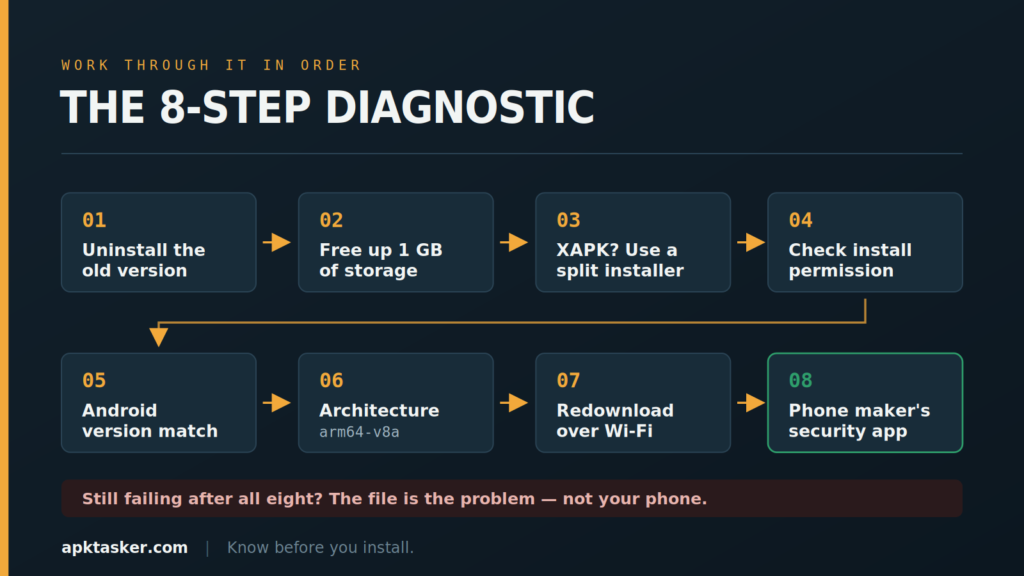
A quick diagnostic order
If you want to move fast, work through it like this:
- Is a version already installed? Uninstall it.
- Is there over 1GB free? Clear space.
- Is the file an XAPK or APKS? Use a split installer.
- Is install permission on for the app you’re opening it with?
- Does your Android version meet the minimum?
- Does the architecture match?
- Redownload the file over Wi-Fi.
- Check the manufacturer’s security app.
Eight steps, and you’ll have solved it or learned that the file itself is the problem.
When you should stop trying
Worth saying plainly: sometimes the install failure is protecting you.
If Play Protect flagged it, if the signature is broken, if three sources all produce corrupt files, or if the app is a cracked build of something paid — the error is not an obstacle to route around. Repeatedly disabling security layers to force an install is how people end up with malware on a phone that also holds their mobile wallet.
An app you can’t install costs you nothing. An app you shouldn’t have installed can cost you a great deal.
FAQs
What does “app not installed” actually mean?
It’s a catch-all. Android uses the same message for signature conflicts, storage failures, architecture mismatches, corrupt files and blocked packages.
Why does the same APK work on my friend’s phone but not mine?
Almost always CPU architecture or Android version. Their device meets a requirement yours doesn’t.
Will clearing cache delete my data?
No. Cache is temporary files that rebuild themselves. Clearing storage or data is the destructive one — that’s different.
Is it safe to turn off Play Protect to install an app?
Only if you can independently verify the developer, and only briefly. If you can’t identify who built the app, don’t.
Why do I get “problem parsing the package”?
Usually a corrupted download, a broken signature, or an APK built for a much newer Android version than your phone runs.